
Resonance: A Plague Tale Legacy Best PC Settings
1080p, 1440p, 4K, ultrawide, Steam Deck — verified against PCGamingWiki and Digital Foundry.
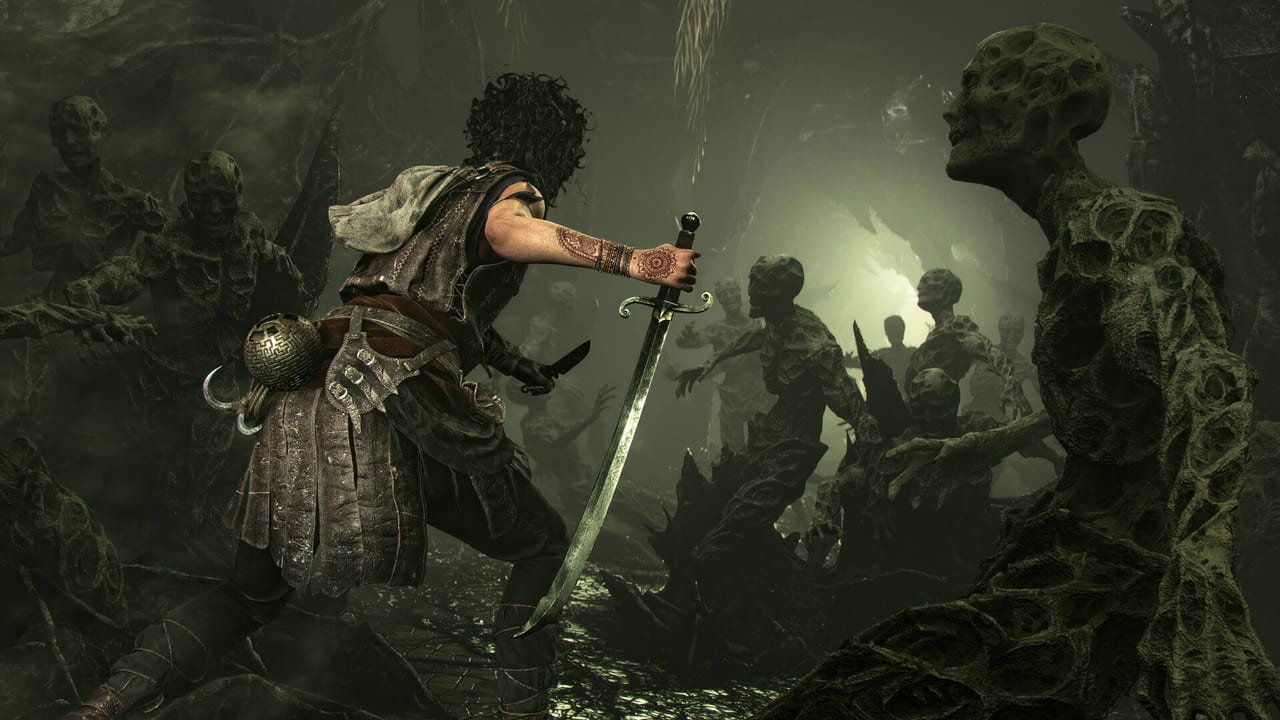
Resonance: A Plague Tale Legacy runs on Asobo’s Zouna engine, the same engine that powered A Plague Tale: Requiem and Microsoft Flight Simulator. The PC build is well-tuned on console presets but the PC menu exposes enough knobs that a careless player can push the framerate down by half on the wrong screen. This page is the cross-reference between the system requirements floor and the performance page’s console/Deck presets. PCGamingWiki confirms the underlying toggles (DX12, Shader Model 6.6, FSR 4, DLSS 4.5, Frame Generation via DLSS MFG and FSR FG, ray-traced shadows that are still glitchy at launch, custom HDR mid-point slider, custom colorblind mode). Use this page as the per-resolution template before you touch the performance page’s console mode tables.
Most of the campaign is forgiving on hardware. The frame-time spikes are concentrated in two places: the dual-timeline flashback chapters (Chapter 4, Chapter 5, Chapter 8, Chapter 11) and the Petrified-heavy chase sequences in Chapters 9 and 12. If your framerate hitches only during cutscenes, your VRAM is the bottleneck, not your GPU shader count.
If you are on a laptop or hybrid GPU, force the discrete adapter before launch: right-click Resonance.exe → NVIDIA Control Panel / AMD Software → Set to High Performance. The launch arg list at the bottom of this page covers the additional console-equivalent tweaks if you want to skip intro videos or pin the engine to one CPU core.
1080p, 60 FPS, Ultra (recommended for RTX 3060 Ti / RX 6700 XT)
This is the target Asobo labeled as recommended on Steam. Start here if you meet the recommended row on the system requirements page.
| Setting | Recommended value | Why |
|---|---|---|
| Resolution | 1920 × 1080 (native) | Native 1080p, no upscaler needed |
| Display mode | Fullscreen (borderless) | Alt+Enter toggles windowed |
| Refresh rate cap | 60 | Cap to your monitor’s refresh rate |
| V-Sync | On if you cap; Off if you use the in-game framerate cap | An external cap lets you keep V-Sync on with low input lag |
| Quality preset | Ultra | Drop to High before you touch individual sliders |
| Shadows | Ultra | PCGamingWiki flags shadows as the heaviest per-frame cost |
| Volumetrics | High | Drop one notch first if you hitch |
| Texture quality | Ultra | 8× anisotropic filtering is locked to this slider |
| Anti-aliasing | DLAA (NVIDIA) / FSRAA (AMD) | Native AA without upscaling |
| Upscaler | Off at native 1080p; DLSS Quality only if you drop below 60 FPS | |
| Frame generation | Off unless you drop to 40 FPS | Adds latency even with Reflex |
| Ray-traced shadows | Off | PCGamingWiki: RT shadows are glitchy at launch |
| Film grain | Off | Toggle via PostProcess.FilmGrain = 0 in ENGINESETTINGS |
| Vignette | Off | Toggle via PostProcess.Vignette = 0 |
| Camera dirt | Off | Toggle via PostProcess.Dirt = 0 |
| HDR | Off unless your monitor is HDR | Three HDR presets (SDR-equivalent, HDR1000, HDR400) live in the Video submenu |
| Color blind mode | Standard | Three presets (Deuteranopia, Protanopia, Tritanopia) and a custom slot |
Sharpening (SharpenAmount) | 0.4–0.6 (in ENGINESETTINGS) | 0.6 is decent for 2560×1600 + DLAA |
The biggest single win on a 3060 Ti is dropping shadows from Ultra to High before you touch any other slider. The second biggest is turning off film grain and vignette, both of which are post-process passes you can disable in the configuration file without affecting visual depth on the Minoan ruins.
1440p, 60 FPS, High (recommended for RTX 4070 / RX 7800 XT)
| Setting | Recommended value |
|---|---|
| Resolution | 2560 × 1440 |
| Display mode | Fullscreen (borderless) |
| Quality preset | High |
| Anti-aliasing | DLSS Quality (NVIDIA) / FSR 2 Quality (AMD) |
| Upscaler | DLSS 4.5 / FSR 4 |
| Frame generation | Optional — DLSS MFG on RTX 40 series, FSR FG on RX 7000 |
| Shadows | High |
| Volumetrics | High |
| Texture quality | Ultra |
| Ray-traced shadows | Off |
| Sharpening | 0.5–0.7 |
| HDR | Off unless OLED / high-nit |
At 1440p the engine starts to lean on the upscaler. PCGamingWiki confirms that DLSS Quality holds image fidelity at 1440p without the soft-edge artifacts you get on FSR 2. If you are on AMD, FSR 4 Frame Generation is the safest bet; FSR 2 Quality still looks fine for slow-pan scenes but the Petrified chase in Chapter 9 will show ghosting if you push FSR 2 to Balanced.
4K, 60 FPS, Ultra (recommended for RTX 4080 / RX 7900 XT)
| Setting | Recommended value |
|---|---|
| Resolution | 3840 × 2160 |
| Quality preset | Ultra |
| Anti-aliasing | DLSS Performance (NVIDIA) / FSR 2 Performance (AMD) |
| Upscaler | DLSS 4.5 / FSR 4 |
| Frame generation | On if your card supports MFG (DLSS Multi-Frame Generation) |
| Shadows | Ultra |
| Volumetrics | Ultra |
| Texture quality | Ultra |
| Sharpening | 0.8–1.0 (max 1.0) |
| Ray-traced shadows | Off |
| HDR | HDR1000 if OLED / high-nit |
At 4K the engine is bound by ROPs, not by shader count, which is why the upscaler choice matters more than the shadow slider. Sharpening up to 1.0 is safe and PCGamingWiki confirms it as the max value in the SharpenAmount field. The HDR1000 preset is calibrated for high-nit OLED displays; budget HDR400 panels should keep HDR off entirely.
Ultrawide 21:9 / 32:9
Resonance ships with full 21:9 support and Hor+ scaling, confirmed by PCGamingWiki. The 21:9 preset renders to 3440 × 1440 with small black bars removed via Asobo’s native handling. Tested resolutions on PCGamingWiki include 3440 × 1440 (UWQHD) and 5120 × 1440 (super-ultrawide). The small black bars present in cinematic cutscenes are a known launch-day limitation; a community fix (Rose’s fix from the plaguerequiem index) removes the cinematic letterbox.
| Resolution | Status | Notes |
|---|---|---|
| 2560 × 1080 (21:9) | Native, Hor+ | No community fix needed |
| 3440 × 1440 (UWQHD) | Native, Hor+ | Verified by PCGamingWiki in both cutscene and gameplay |
| 5120 × 1440 (32:9) | Native, Hor+ | Use community fix for cutscenes |
| 3840 × 1600 (16:10) | Native | Clamp FOV to 90 to compensate for the vertical squeeze |
For super-ultrawide, set the FOV slider in the Camera accessibility menu to 90 or 100 to compensate for the wider horizontal stretch. Lower the shadow preset one notch before you raise FOV — the wider horizontal sweep doubles the per-frame cost of cascade shadow rendering.
Steam Deck (verified Playable)
Steam labels Resonance Playable, not Verified. The community layouts hold 30 FPS in most areas but Chapter 9 has a known crash after a cutscene (reported by Steam Deck HQ’s launch review). If you are on handheld:
- Quality preset: Low (not Medium — Medium hitched on the Minoan parallax).
- Resolution: 1280 × 800 (Deck native).
- FSR 2: Quality — FSR 4 Frame Generation is not validated on Deck.
- Shadows: Low.
- Volumetrics: Low.
- Texture quality: Medium (VRAM-friendly).
- Film grain / vignette / camera dirt: Off via the
PostProcessblock in ENGINESETTINGS. - Sharpening: 0.5.
- Frame rate cap: 40 (matches Deck’s native panel and avoids sub-30 spikes in dual-timeline chapters).
- Save extra often around Chapter 9 and the Night Has Come cutscene.
The detailed console mode tables (PS5 30/40/60 FPS, PS5 Pro PSSR options, Series S 1080p) live on performance. The Steam Deck notes here are deliberately minimal because the handheld-specific tweaks are a different domain than desktop PC settings.
Microsoft Store / Game Pass PC
Game Pass on PC uses the Microsoft Store build, which does not run Steam’s shader pre-warm pass. The first time you visit a region, expect a hitch while shaders compile. Workarounds:
- Disable frame generation for the first pass through each chapter.
- V-Sync on with an external cap (RTSS or your monitor’s free-sync ceiling).
- Let the first pass complete without alt-tabbing. Alt-tab pauses the game and resets the shader compile queue.
Once shaders compile, the Microsoft Store build runs the same campaign as Steam with the same framerate targets. The hitching difference evaporates after the first hour of play.
ENGINESETTINGS tweaks (advanced)
PCGamingWiki documents the configuration file location and the post-process fields you can edit manually. Back up the file before you change anything. The file path is %APPDATA%\Resonance A Plague Tale Legacy\ENGINESETTINGS.
| Field | Default | Verified safe change | Effect |
|---|---|---|---|
PostProcess.FilmGrain | 1 | 0 | Removes film grain pass; visual depth unchanged |
PostProcess.Vignette | 1 | 0 | Removes vignette pass; useful on HDR1000 panels |
PostProcess.Dirt | 1 | 0 | Removes camera dirt pass; cleanest look on 4K |
Video.SharpenAmount | 0.4 | 0.6–1.0 | Counteracts DLSS softness; max 1.0 |
Video.MaxFPS | 60 | match your monitor | Clamps framerate; pairs with V-Sync |
Video.HDRLuminance | auto | slider | PCGamingWiki confirms a mid-point slider with no fixed value |
Engine.RayTracedShadows | 0 | leave at 0 | PCGamingWiki: RT shadows are glitchy at launch |
Input.EnableSteamInput | auto | 0 | Disables Steam Input for DualSense/DualShock native polling |
The launch arguments block on the launch arguments page documents -FastLaunch, -windowed, -novid, -fullscreen, and the Steam Input toggle.
What this page will not pretend to know
There is no published framerate number for the Chapter 11 Minos fight on every GPU. Community benchmarks live on the Digital Foundry technical review and on r/resonanceaplaguetalegacy — link to those rather than quote frame counts we cannot verify. There is no in-game FPS overlay you can pin without editing the configuration file. There is no per-blade frame-time graph. Use PCGamingWiki, Digital Foundry, and the Steam community discussions as the canonical sources for any number you see quoted on a third-party blog.
How this page connects to the rest of the wiki
- System requirements — the floor for everything above.
- Performance — console modes, Deck notes, Game Pass hitching, and the dual-timeline chapters that tax the engine.
- PC Settings — the in-game graphics menu explained slider by slider.
- Launch arguments —
-FastLaunch, fullscreen toggle, Steam Input disable. - Photo Mode — what to capture at the resolution above.
- Accessibility — color blind presets, HDR slider, motion sickness toggle.
- Trophies — frame-rate-independent trophy list, but Like a Warrior points still require a full run.
Frequently Asked Questions
Quick answers to the most common questions.
What is the best DLSS preset for 1440p?
DLSS Quality at 1440p. PCGamingWiki confirms DLSS Quality holds image fidelity without the soft-edge artifacts you get on FSR 2 at the same preset. DLAA (no upscale) is a better choice if your native 1440p framerate holds above 60 FPS without an upscale.
Should I enable frame generation?
Only if your framerate hitches below 40 FPS without it. Frame generation adds latency even with Reflex on, and the chase sequences in Chapter 9 and Chapter 12 are sensitive to input lag. For 60 FPS targets on RTX 3060 Ti and above, keep it off.
Does ray-traced shadows work?
No. PCGamingWiki confirms ray-traced shadows appear glitchy at launch even though the option can be forced in the ENGINESETTINGS file. Leave the toggle off until Asobo patches the feature.
Why does my game hitch on first visit to a region?
Shader compilation. Steam pre-warms shaders, the Microsoft Store build does not. The first pass through a new region is the worst; subsequent passes are smooth. Disable frame generation for the first pass.
Is HDR worth enabling on PC?
Only on HDR1000 (OLED / high-nit) or HDR400 (budget HDR) reference displays. The HDR toggle is a steam flag, not a per-monitor calibration; turning it on a non-HDR monitor crushes shadow detail. PCGamingWiki lists a mid-point slider with no fixed values; leave it at the recommended default unless you have a calibrator.
Does the game support ultrawide?
Yes. 21:9 (2560×1080, 3440×1440) and 32:9 (5120×1440) are natively supported via Hor+ scaling. Small black bars in cinematic cutscenes can be removed with Rose's community fix from the plaguerequiem index.
What is the best Steam Deck preset?
Low preset, 1280×800 native, FSR 2 Quality, 40 FPS cap, shadows and volumetrics on Low, film grain and vignette off via the PostProcess block in ENGINESETTINGS. Save extra often around Chapter 9 — the community has reported a post-cutscene crash on Deck.
Can I skip intro videos on PC?
Yes. Add `-FastLaunch` to the launch arguments in your Steam library. The launch arguments page documents the full list.